Client Setup Guide

Cal.com Setup

Connect your own calendar to your Cal.com booking account so every booked call lands on your calendar automatically. Two short steps, and we set up everything else on our side. One-time setup, about 4 minutes.

4
Minutes
2
Steps
Auto
On Your Calendar
1x
One-Time Setup
Watch First
A quick walkthrough of the two steps below
Cal.com Setup — Quick Walkthrough

Watch this first to see the whole flow, then follow along on your own screen.

Before You Start
What we have already done, and what you do
Read this first

We have already created your Cal.com booking account on an admin login and built the booking page your prospects use. Your only job is to log in once with the account we sent you and connect your own work calendar. That is everything we need from you. We set up the rest, the video links, reminders and notifications, on our side.

What you will end up with
OutcomeHow it helps
Bookings on your own calendarEvery booked call appears where you already look, with your normal reminders
No double-bookingsCal.com checks your calendar for conflicts before offering a slot
Nothing missed overnightA booking made while you sleep is on your calendar with a reminder when you wake up
Step 1 (1 minute)
Log into Cal.com with the admin account
1A Open Cal.com

We created an admin account for your booking page. Your login details are below.

Your Cal.com login

Click Copy on either field.

Username
josh@getsearchforhire.co
Password
aTAsBUzb5@NR2JW

Go to cal.com and click Sign In

Sign in with the username and password above, not your own work login

Keep this window open for the next step

Step 2 (3 minutes)
Connect your own work calendar
This is the step that matters most

This is the single change that makes sure a booked call always reaches you, and the one that lets us offer prospects only the times you are actually free. Once your everyday work calendar is connected, every booking is written onto it directly, with your usual reminder, exactly like any other meeting.

2A Start from the dashboard

Once you are signed in with the admin account, this is the screen you land on. The menu you need is on the left.
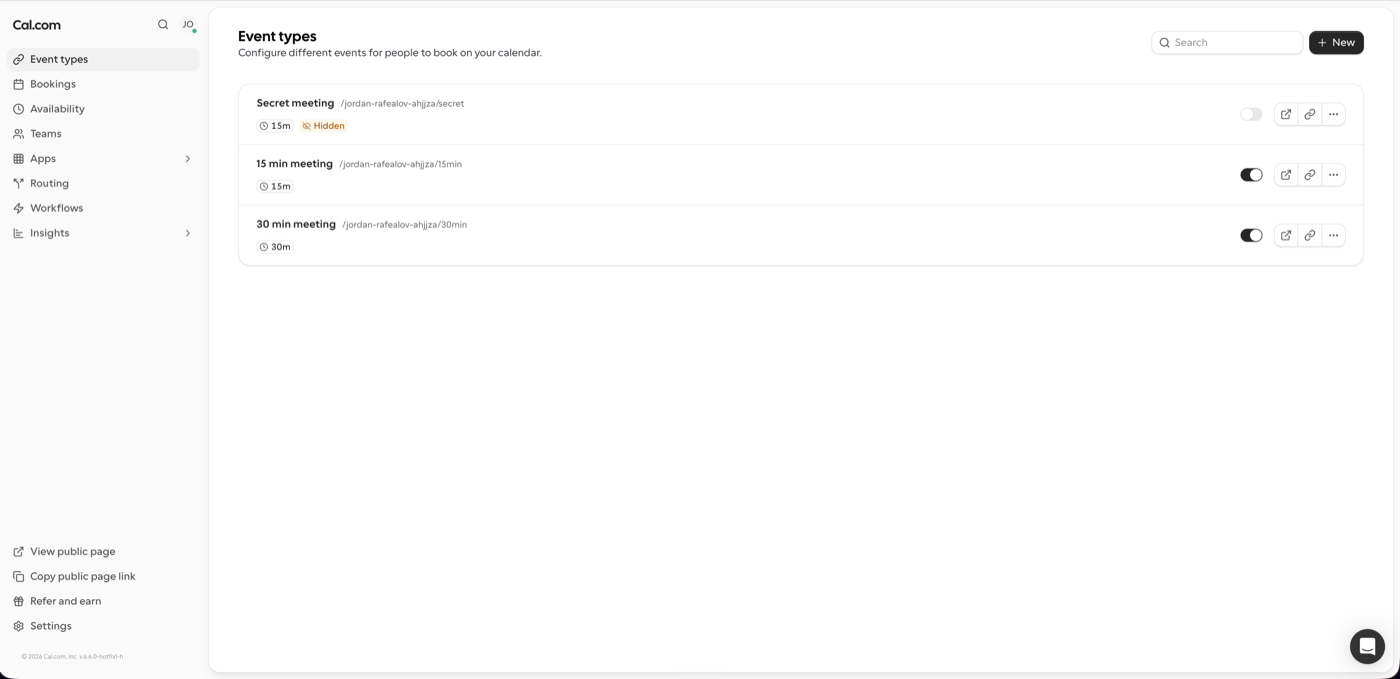
Cal.com dashboard after signing in, showing the left-hand menu
2B Open the App store

In the left sidebar, click Apps

In the menu that opens underneath, click App store
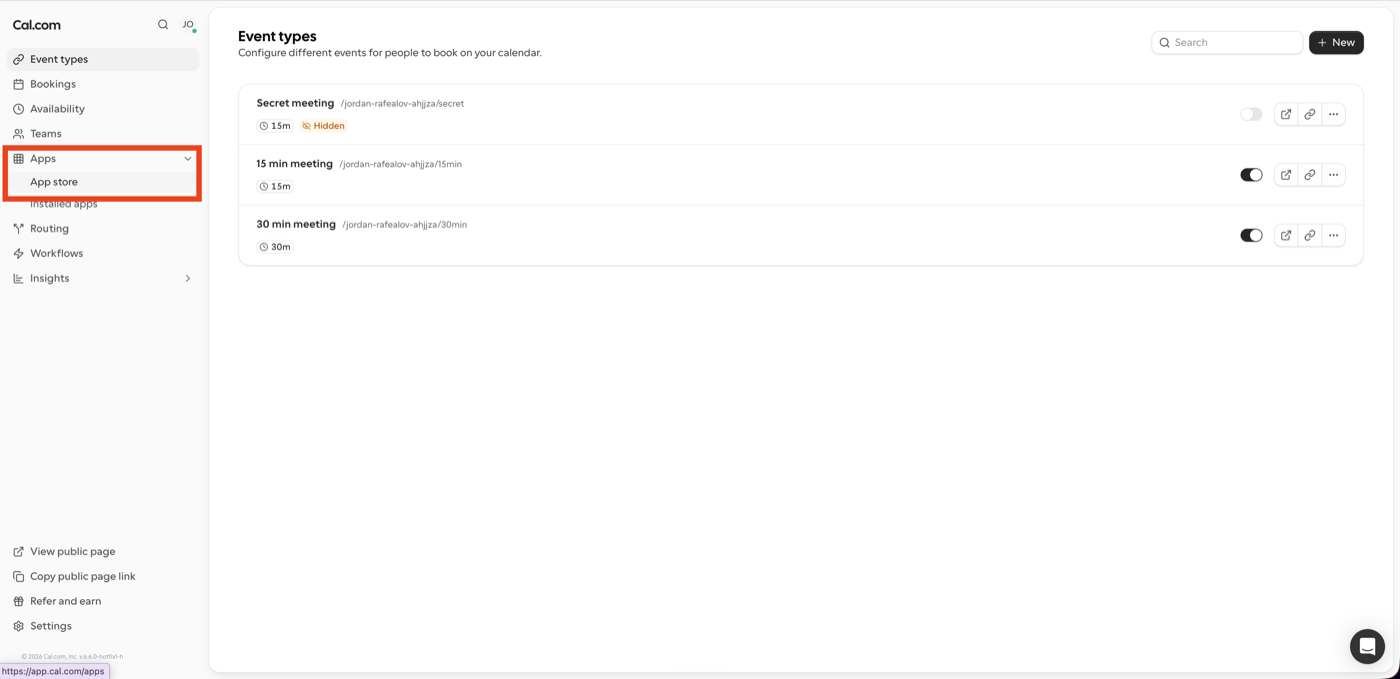
Apps expanded in the left sidebar with App store highlighted
2C Scroll the Most popular row

The app store opens on a "Most popular" row. Your calendar app is a little further along it. The screenshots below show Outlook Calendar; if you use Google Calendar it sits in the same row and the steps are identical.

In the Most popular section, click the arrow on the right to scroll the row across
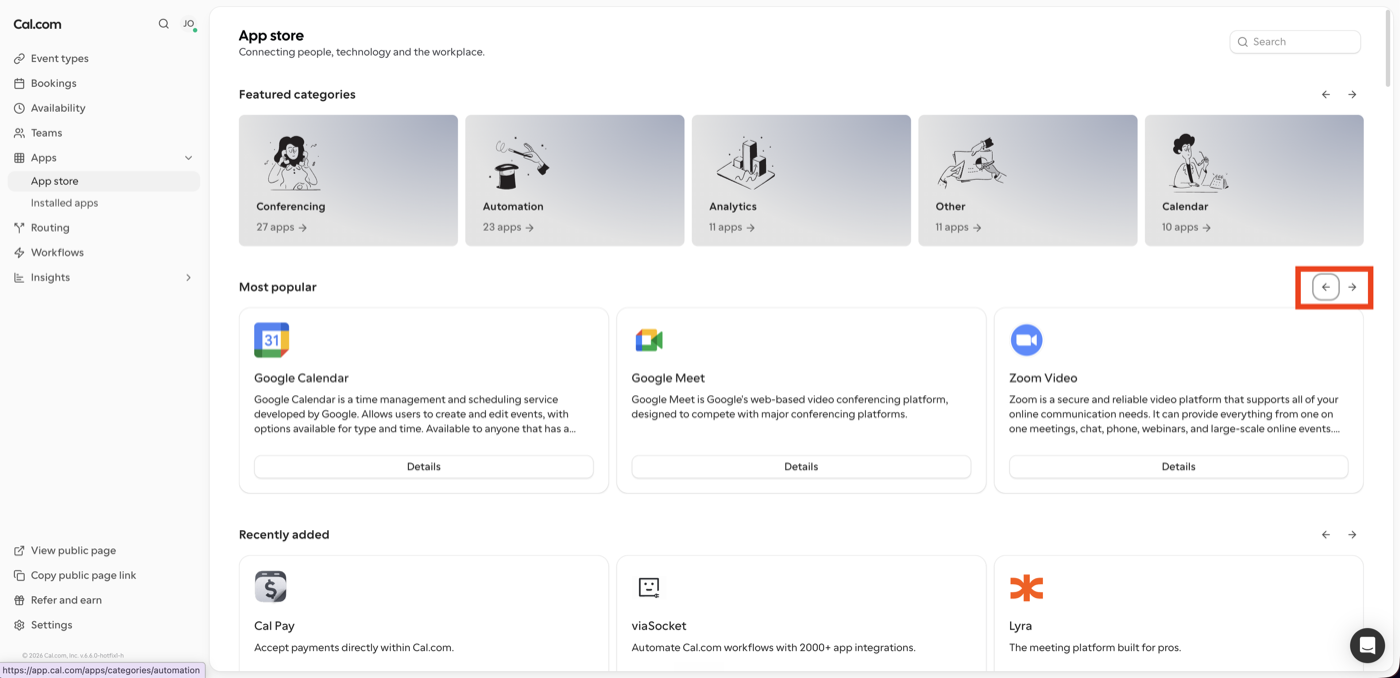
App store Most popular row with the right scroll arrow highlighted
2D Open your calendar app

When your calendar card appears (Outlook Calendar shown, or Google Calendar if that is what you use), click Details on it
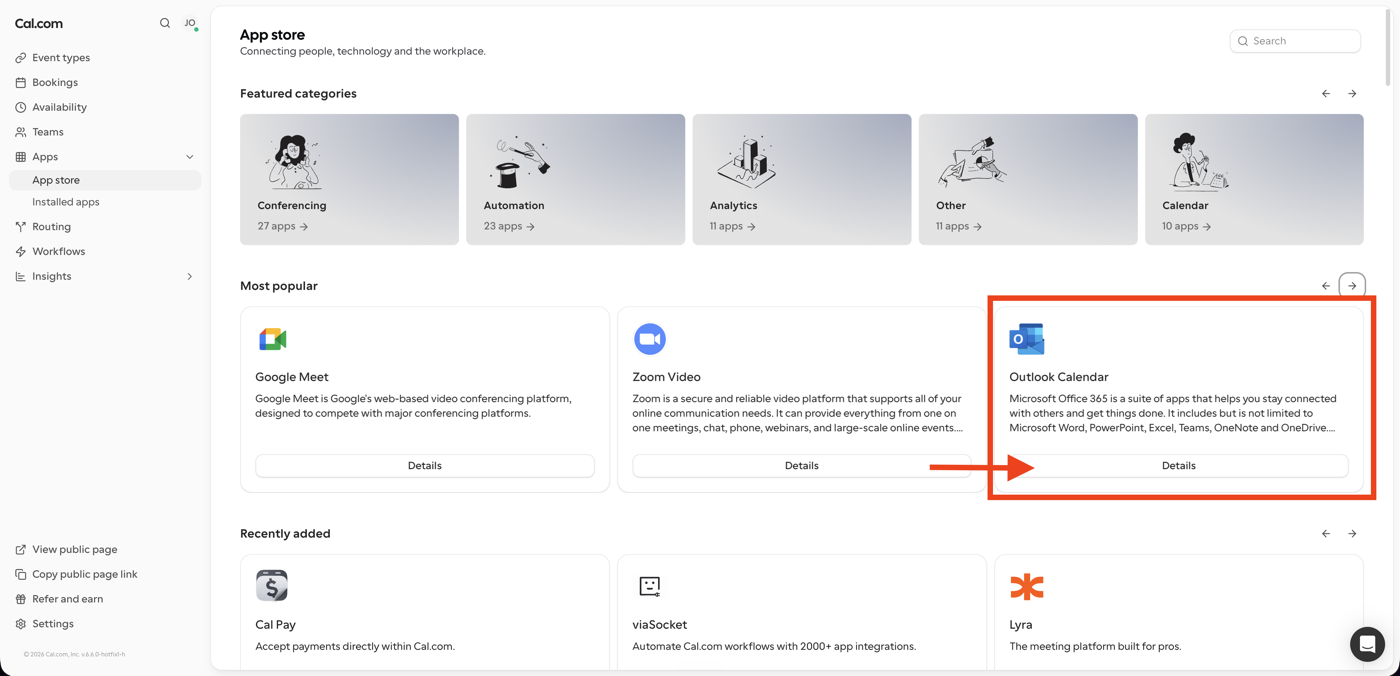
Outlook Calendar card in the Most popular row with Details highlighted
2E Install the app

On the Outlook Calendar page, click Install app
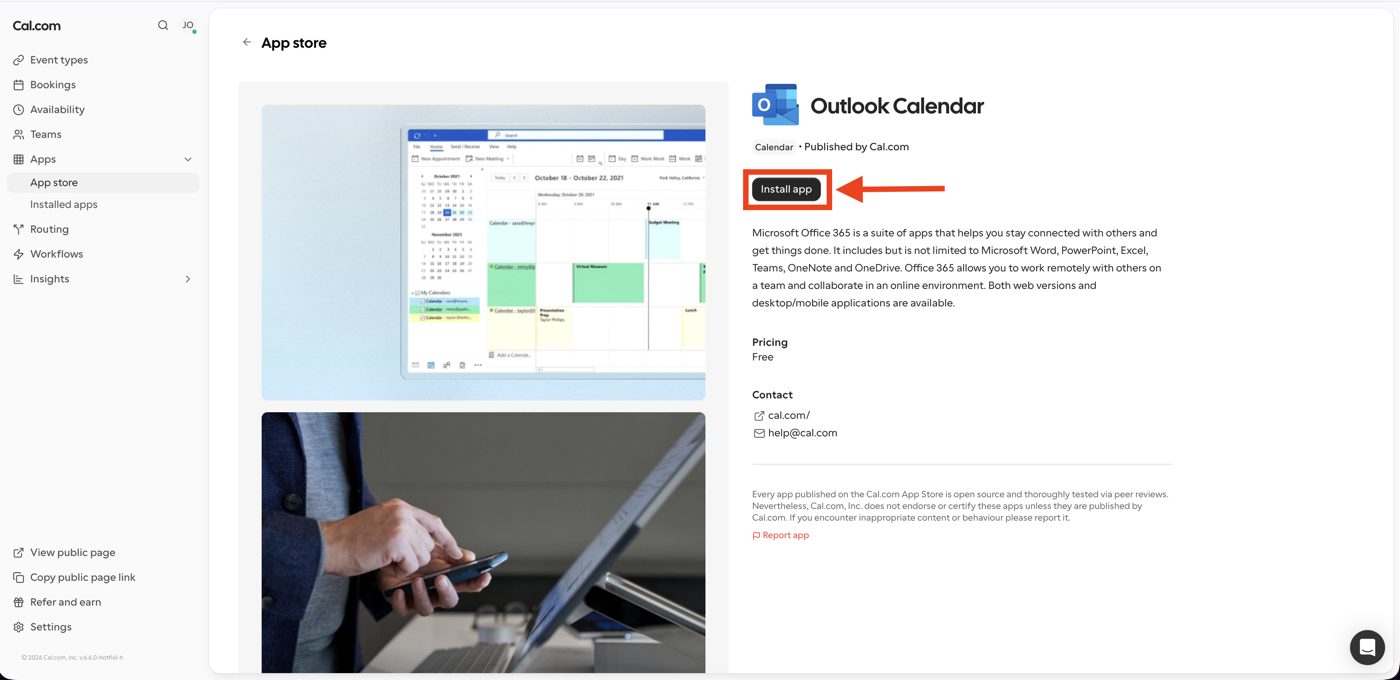
Outlook Calendar app page with the Install app button highlighted
2F Sign in and approve calendar access

Cal.com sends you to your calendar provider to connect the calendar you actually live in. Outlook users are sent to Microsoft; Google users to Google.

Enter your own work email, not the admin account, and click Next

Enter your password and approve the permissions it asks for
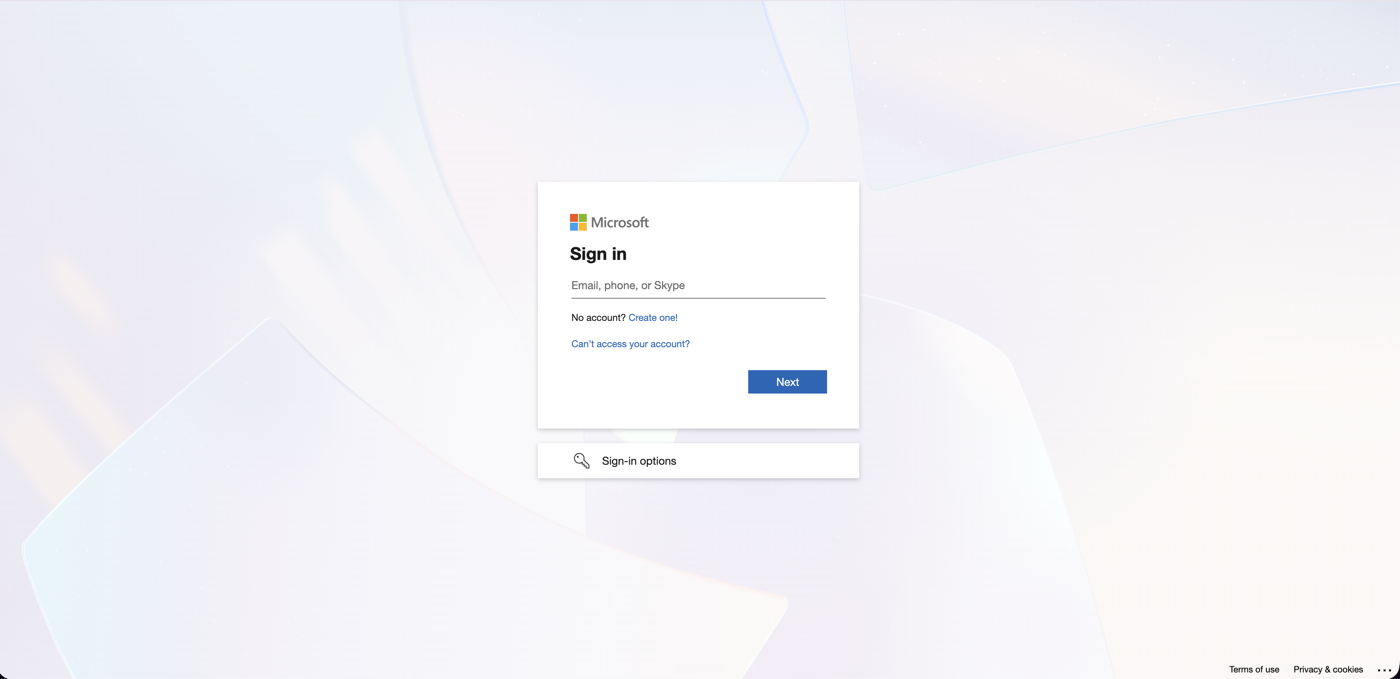
Microsoft sign-in screen
That is everything we need from you

Once you have signed in, your calendar is connected and you are done. We set up the rest, the video link on each call, conflict checking and notifications, on our side. From now on, the moment a prospect books, the meeting appears straight on your calendar.

Quick Checklist
Tick these off on the call with us

Logged into Cal.com with the account we sent

Opened the App store from the left sidebar

Installed your calendar app (Outlook or Google Calendar)

Signed in with your own work account and approved access

Troubleshooting
If something looks off
ProblemFix
The calendar sign-in did not finishMake sure you are signing in with your own work account, not the Cal.com account we sent you. Try Steps 2E and 2F again, then contact us if it still will not connect.
I am not sure it workedOnce you have signed in and Outlook Calendar shows as installed, you are done. We confirm everything is connected correctly on our side.